Start an emulator
Launch an Android Virtual Device. It appears in StupidMirror under its AVD name while it runs.
StupidMirror finds every running Android emulator and authorized ADB device, mirrors and controls it with the bundled scrcpy server, and reads its accessibility tree with adb. Claude Code, Codex and other MCP clients use the same tools they use for iPhones.
Needs macOS 15 or later and Android SDK Platform-Tools (adb) on the Mac. The app reminds you when adb is missing; the scrcpy server is bundled.
Launch an Android Virtual Device. It appears in StupidMirror under its AVD name while it runs.
Android 11 or later: turn on USB debugging, connect the phone and approve this Mac's key.
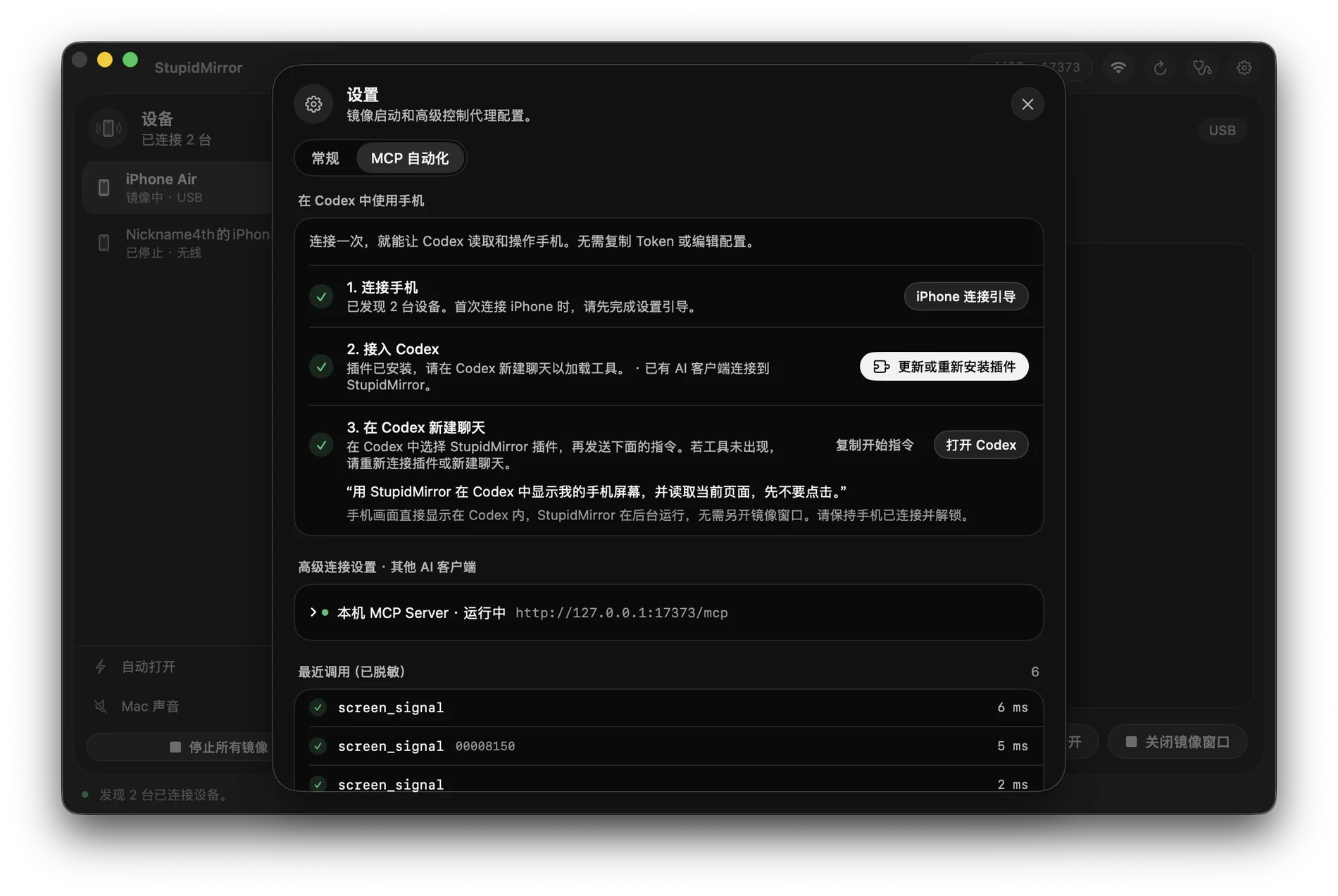
In Settings → MCP Automation, click Connect on the Claude Code card or the Codex card. Parts already installed are skipped.
Start a new session and try: “List my devices, open the Android emulator and read the current screen without tapping anything.”
Registered by Connect on the Claude Code card: a stdio bridge, so no token is written to Claude Code's configuration.
claude mcp add --scope user stupidmirror -- /Applications/StupidMirror.app/Contents/Helpers/StupidMirrorMCPBridge --app /Applications/StupidMirror.appOther MCP clients: Streamable HTTP on localhost (default port), with the bearer token from the generated configuration.
http://127.0.0.1:17373/mcp
Authorization: Bearer <token>observe_screen returns the live scrcpy frame with local OCR; get_ui_tree reads the uiautomator hierarchy through adb when the agent needs it.
tap_text, tap_element, swipe, long_press, type_text and replace_text run through the scrcpy control channel; Chinese and other text is pasted and your clipboard is restored afterwards.
back presses Android Back, press_button sends Home or volume, and app_switcher opens recent apps.
install_app installs an .apk and keeps the app's data across a reinstall; activate_app and terminate_app take a package name.
wait_for and assert_screen check that text appears or disappears before the agent moves on.
start_recording saves the live mirror as an .mp4 of up to 10 minutes in ~/Movies/StupidMirror.
The MCP server listens on 127.0.0.1 only, and device control runs through adb on this Mac. Capture, playback and OCR run locally; StupidMirror does not upload the screen to a model provider. Your AI client receives the screenshots and tool results it asks for, under its own data settings.
Mirror and control one device at a time without signing in, whether a simulator, an emulator or a real phone. Running several at once, such as a simulator or emulator next to a real phone, needs the iTool yearly membership: ¥99/year with Alipay or US$26.49/year by card. It covers every iTool product; the monthly plan does not include StupidMirror.
iTool yearly membershipAndroid emulators running on this Mac. They connect over ADB like a phone and are listed by AVD name. They are not mirrored until you or your agent opens one.
You need adb from Android SDK Platform-Tools; Android Studio is only for creating and running emulators. The scrcpy server used for mirroring and control ships with the app; nothing is installed on the device.
Android 11 or later, on phones and emulators.
Yes. Real iPhones over USB or Wi-Fi and booted iOS Simulators use the same tool names.
One device at a time is free without signing in. Several devices at once need the iTool yearly membership, ¥99/year or US$26.49/year.
Yes, with the iTool yearly membership. Call list_devices, then pass device_id to target each one.
Not through StupidMirror. The server listens on 127.0.0.1 only. Screenshots your AI client asks for go to that client and follow its data settings.